TapGuide / Make a guide on Android
How to make a step-by-step guide on Android
A good phone guide shows each screen, points at the exact button, and says what to tap in plain words. Here are two ways to make one on Android: by hand, and automatically.
What a good step-by-step guide has
- One action per step. “Tap Wi-Fi”, not “go to Wi-Fi and turn it on and pick your network”.
- A screenshot of each screen, taken before the tap, so the reader sees what they should see.
- The button marked with a box or highlight, so nobody hunts for it.
- The screen named in the text: “Tap Internet on the Network & internet screen.”
- Nothing private: names, emails and account numbers blurred.
Method 1: by hand, with screenshots
This works on any Android phone with no extra app, but it takes a while for anything longer than a few steps.
- Open the first screen of the task.
- Take a screenshot before every tap: press Power and Volume down together on most phones.
- Open each screenshot in Google Photos or your gallery, tap Edit, and draw a box around the button you are about to tap. Crop out anything private.
- Paste the screenshots into a document, in order, and write one instruction under each.
- Export the document as a PDF and share it.
The hard parts are remembering to take every screenshot, keeping them in order, and writing each step. A ten-step task usually means ten screenshots, ten edits and ten lines of text.
Method 2: automatically, with TapGuide
TapGuide does the screenshots, the highlight and the writing while you do the task.
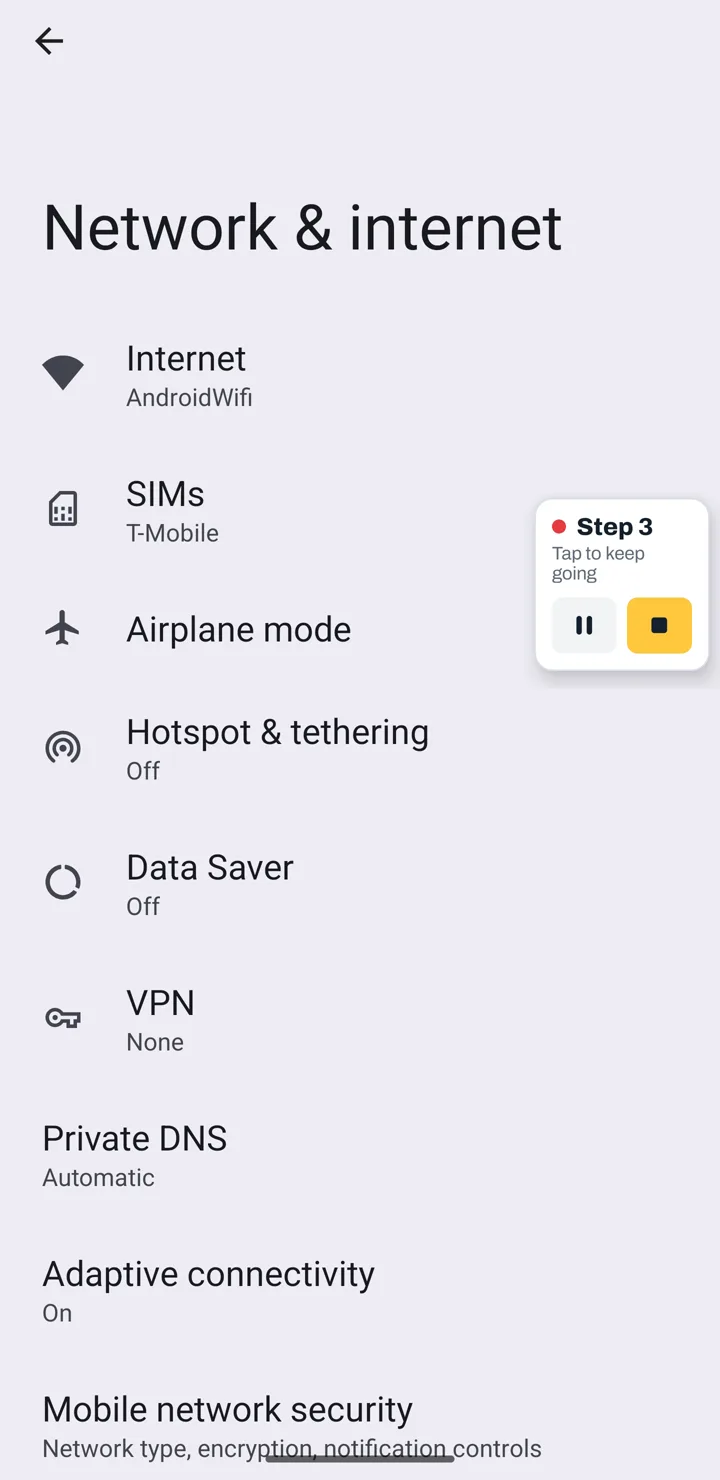
- Install TapGuide from Google Play and follow the setup. It asks for the Accessibility service, to know which button you tap, and for screen capture, to take each screenshot.
- Press Record. Give the guide a name if you like.
- Do the task once, in any app. Each tap becomes a step: a screenshot from just before you tapped, the button highlighted, and the instruction written from the button’s label.
- Press Stop from the bubble or the notification.
- Check the steps. Fix a word, move the highlight, blur anything private, merge or reorder steps, or add a note for the reader.
- Export to PDF for email, print and chat, or to Markdown or HTML for your help center.
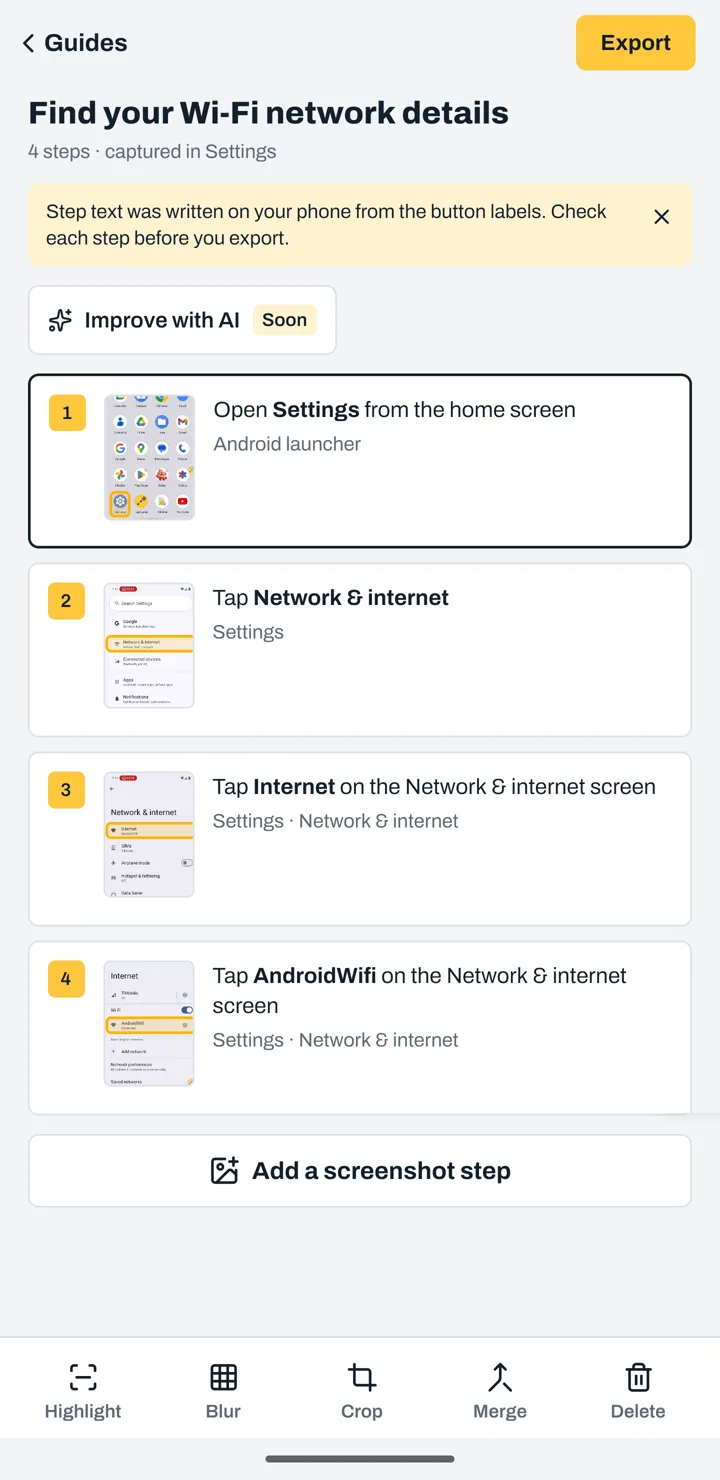
Fields you type into become steps too. TapGuide saves the field’s name, never what you typed, and password and PIN screens pause recording on their own.
Tips for a guide people can follow
- Start from a screen everyone has, like the home screen or the app’s first page.
- Do the task slowly once. Wait for each screen to load before you tap, so every screenshot is clean.
- Remove detours. If you tapped the wrong thing, delete that step afterwards.
- Blur before you share. Blur in TapGuide is burned into the exported image, so it can’t be undone by the reader.
- Test it. Hand the guide to someone and watch where they hesitate.
Try it on your next task
TapGuide is free on Android 8.0 and later. No account, no internet access.
Get it on Google Play