TapGuide / SOPs and work instructions
SOPs and work instructions, made on the phone
Field, warehouse, retail and support teams do much of their work in mobile apps. Writing a standard operating procedure for those apps usually means a pile of screenshots and an afternoon in a document. TapGuide makes the steps while you do the task.
Why mobile SOPs fall behind
Desktop processes have plenty of documentation tools. Phone processes, like a handheld scanner app, a delivery app, a point-of-sale app or a company phone’s settings, are usually documented with screenshots pasted into a document by hand. So they’re written once, never updated, and new hires learn by asking.
Make an SOP in three steps
- Record. Press Record in TapGuide and do the procedure once, the way it should be done.
- Review. Each tap is already a step with a screenshot, the button highlighted, and the instruction written. Reword steps, add a note where the reader needs a warning or a tip, blur customer data, and delete any detours.
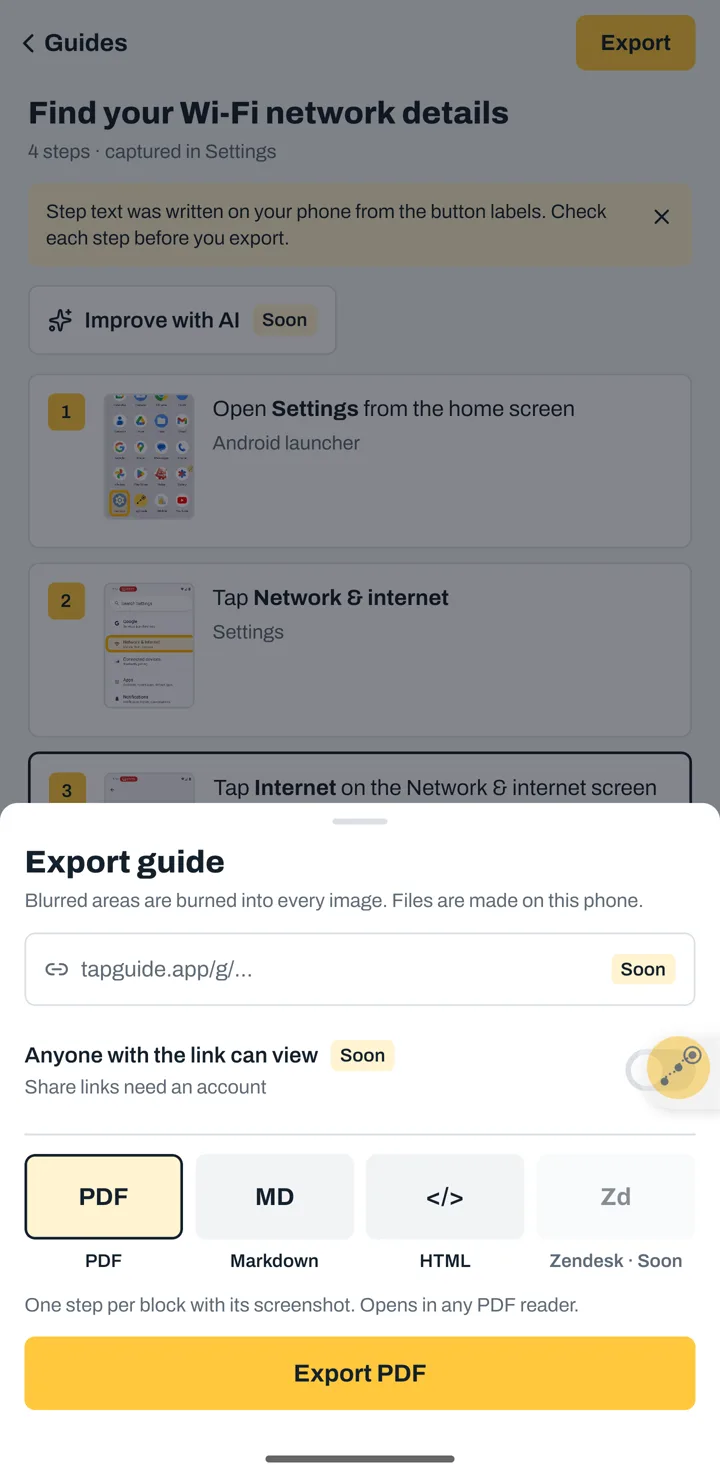
- Publish. Export a PDF to print or pin in a team chat, or Markdown or HTML with an images folder for Confluence, Notion, SharePoint or your help center.
A simple SOP structure
TapGuide writes the steps. Add the rest around them in your document or wiki:
- Title: the outcome, like “Receive a delivery in the scanner app”.
- Purpose: one sentence on why the procedure exists.
- Who and when: the role that does it, and what triggers it.
- Before you start: the device, the login, anything to have ready.
- Steps: the guide from TapGuide.
- Check: how to know it worked.
Good fits
- Onboarding new hires on the apps they use every day.
- Rolling out a new mobile app or a changed process.
- Setting up company phones: email, VPN, Wi-Fi, permissions.
- Frontline work instructions for warehouses, stores and field service.
- Support teams answering “how do I…?” with a guide instead of a long message.
Safe for internal apps
Internal apps show customer and company data, which is why many teams can’t upload screenshots to a cloud tool. TapGuide has no account and no internet access. Guides stay on the phone until you export them, password and PIN screens pause recording, and blur is burned into every exported image.
Try it on your next task
TapGuide is free on Android 8.0 and later. No account, no internet access.
Get it on Google Play